
Advanced
Patrol section in pubspec.yaml
If your app has different name on iOS and Android, you can specify app_name
twice – one in android block, and one in ios block.
Though the whole Patrol section in pubspec.yaml is optional, we highly recommend
adding this section, because it enables the following features:
- Patrol will automatically uninstall your app after every test (using
package_nameandbundle_id). This will make the environment which your tests run in more stable and predictable. - Patrol will be able to tap on your app's notifications (using
app_name)
Specific version of patrol_cli
You can install a specific version of Patrol CLI. For example:
dart pub global activate patrol_cli ^1.0.0will install the latest v1 version. We recommend to install a specific
version on CI systems to avoid unexpected breakages.
Isolation of test runs
To achieve full isolation between test runs:
- On Android: set
clearPackageDatatotruein yourbuild.gradlefile, - On iOS Simulator: use the
--full-isolationflag
This functionality is experimental on iOS and might be removed in the future releases.
patrol test --full-isolationAndroid gradle configuration
For Android, you can also set a default value by configuring clearPackageData in your app's build.gradle file:
defaultConfig {
    //...
    testInstrumentationRunner "pl.leancode.patrol.PatrolJUnitRunner"
    testInstrumentationRunnerArguments["clearPackageData"] = "true"
}
Third-party accessibility services (Android)
Patrol drives Android through UiAutomation. By default it acquires it with
FLAG_DONT_SUPPRESS_ACCESSIBILITY_SERVICES, so other AccessibilityServices on the
device (screen readers like TalkBack, accessibility-audit tools, accessibility-based
automation) keep running during the test session.
In Patrol 4.8.0 these services were suppressed for the whole session. The default
was restored to keeping them alive; set the flag below to false to opt back into
suppression.
Set it in your test config:
patrolTest(
  'my test',
  platformAutomatorConfig: PlatformAutomatorConfig.fromOptions(
    androidDontSuppressAccessibilityServices: false, // default: true
  ),
  ($) async {
    // ...
  },
);
or, without touching test code, as a dart-define:
patrol test --dart-define=PATROL_ANDROID_DONT_SUPPRESS_ACCESSIBILITY_SERVICES=falseSetting it to false can help when a native extension package
needs the default UiAutomation connection.
Embrace the native tests
If you've diligently followed the steps in native automation setup and patrol test prints a TEST
PASSED message, you might be now thinking: what did I just do?
The answer is: You've just integrated Flutter testing with native Android/iOS testing frameworks. This means that your Flutter integration tests can now be run as native tests.
What are native tests good for, anyway?
iOS and Android have existed for more than 15 years, and during that time many of awesome testing-related things were built around them – open-source test runners, device farms, HTML report generators. Developers who create native mobile apps can easily reap benefits from this huge, mature ecosystem.
Meanwhile we, Flutter developers, don't have as much at our disposal. Our framework is much younger and less mature.
What if we could masquerade our Flutter tests so that from the outside they would be truly native? This way we leverage many existing tools while maintaining the convenience of writing the tests in pure Dart.
For example, you can run your Patrol tests directly from Xcode. Xcode knows nothing about Flutter, Dart and Patrol – it only launches your test app. Flutter tests are then run inside the test app and the results are reported back to Xcode. This way you get the best of both worlds – the maturity of native iOS development and the productivity of Flutter and Dart.
That's exactly what Patrol does (and what the default integration_test package does at well, but at a bit smaller scale).
Take a look at this simple Flutter integration tests using Patrol:
void main() {
  patrolTest(
    'counter state is the same after going to Home and switching apps',
    nativeAutomatorConfig: NativeAutomatorConfig(
      packageName: 'pl.leancode.patrol.example',
      bundleId: 'pl.leancode.patrol.Example',
    ),
    ($) async {
      await $.pumpWidget(ExampleApp());

      await $(FloatingActionButton).tap();
      expect($(#counterText).text, '1');

      await $.platform.mobile.pressHome();
      await $.platform.mobile.openApp();

      expect($(#counterText).text, '1');

      await $(FloatingActionButton).tap();
      expect($(#counterText).text, '2');
    },
  );
}
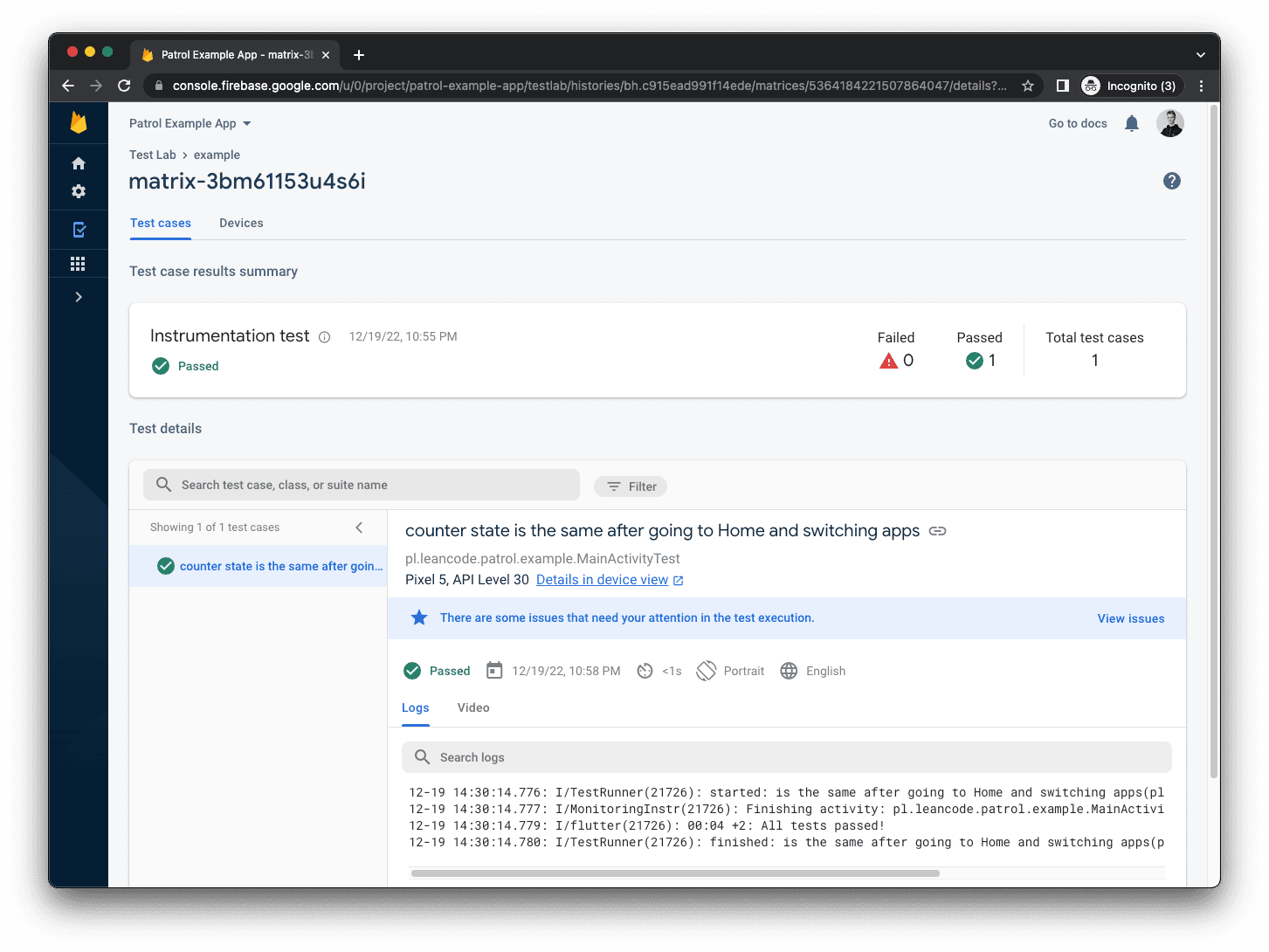
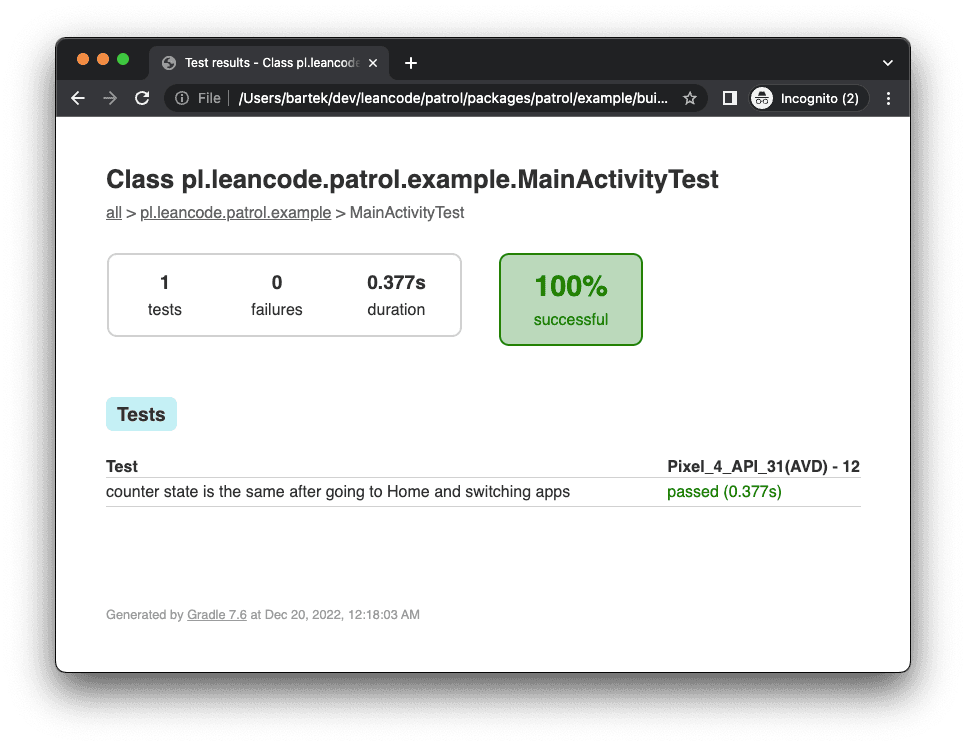
You can run this test and view its results in many ways, using all sorts of different tools, platforms, and IDEs:
When Android test finishes, its test results are automatically generated in
build/app/outputs/androidTest-results/connected/test-result.pb. To view
them in Android Studio, use the Run > Import tests from file option.
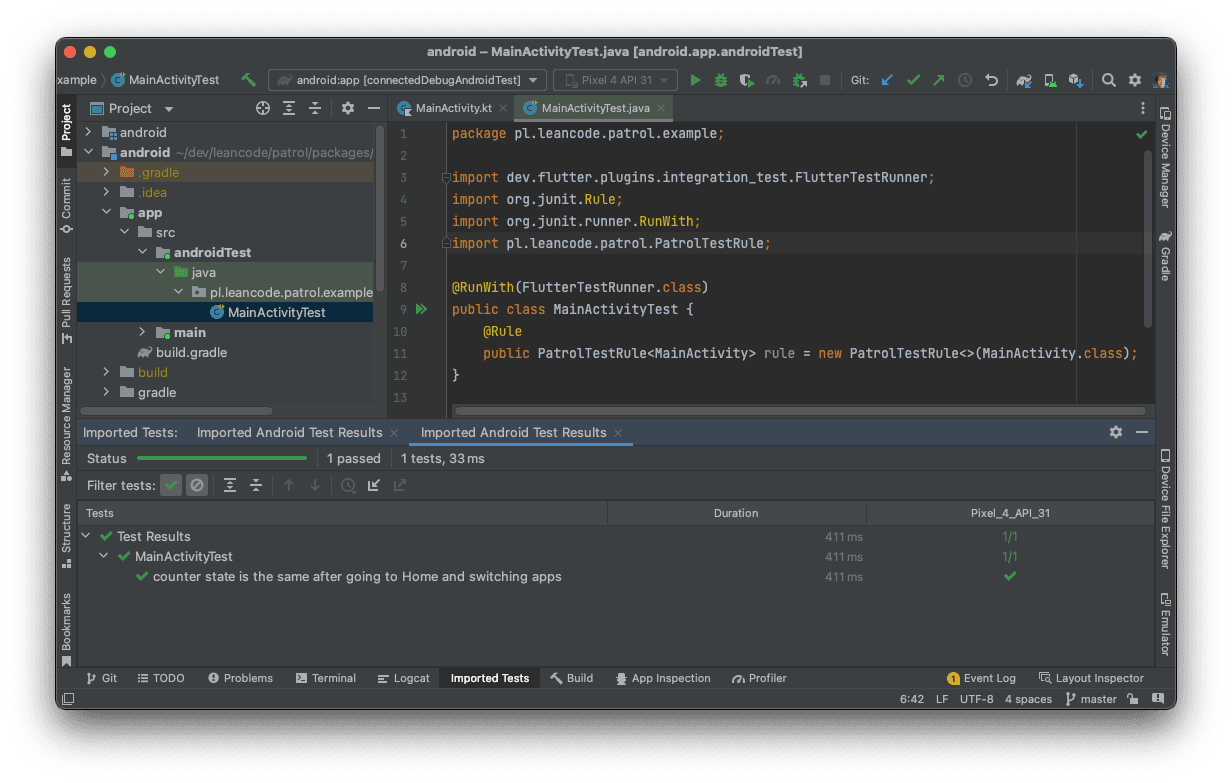
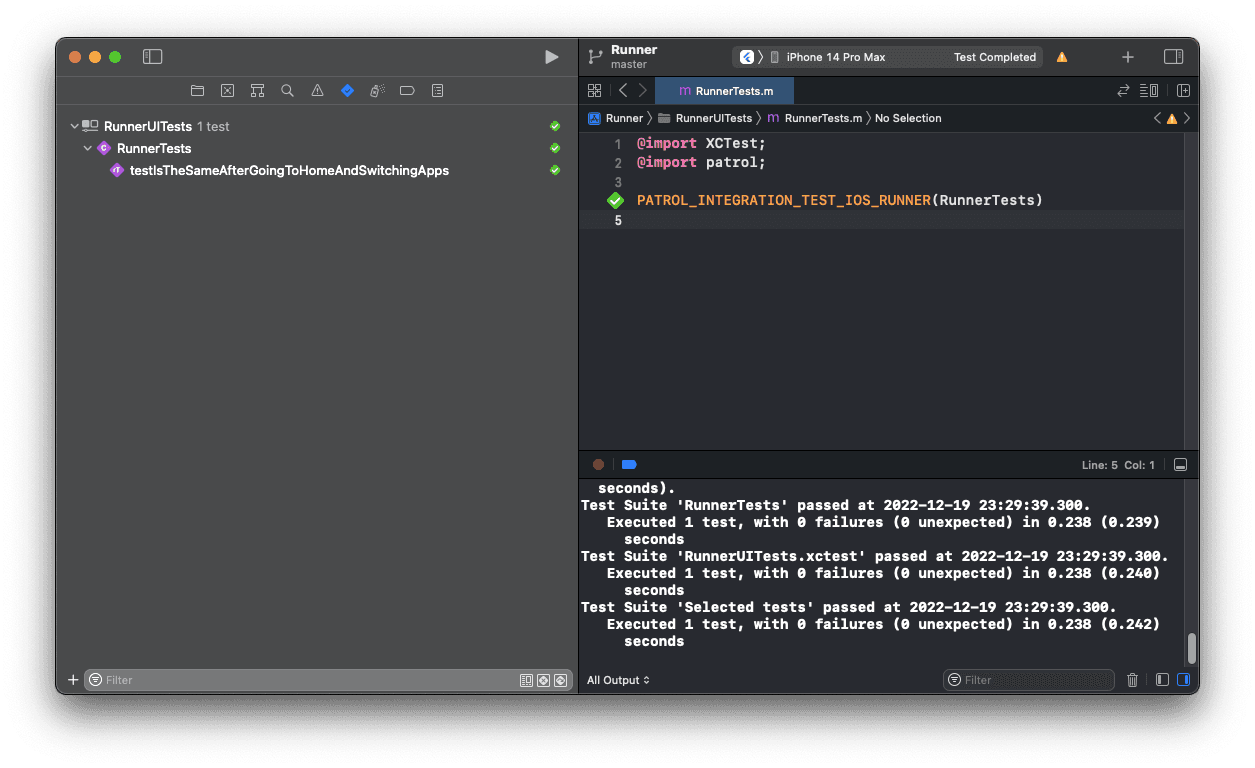
It just works ✨
You don't have to use the bulky Android Studio to view your test results, because Gradle 🐘 automatically generates a nice HTML summary!
You can find it in build/app/reports/androidTests/connected/index.html.
With the help of awesome fastlane scan you can prettify the output of
xcodebuild to make it easier to understand and generate HTML summary of
your tests.
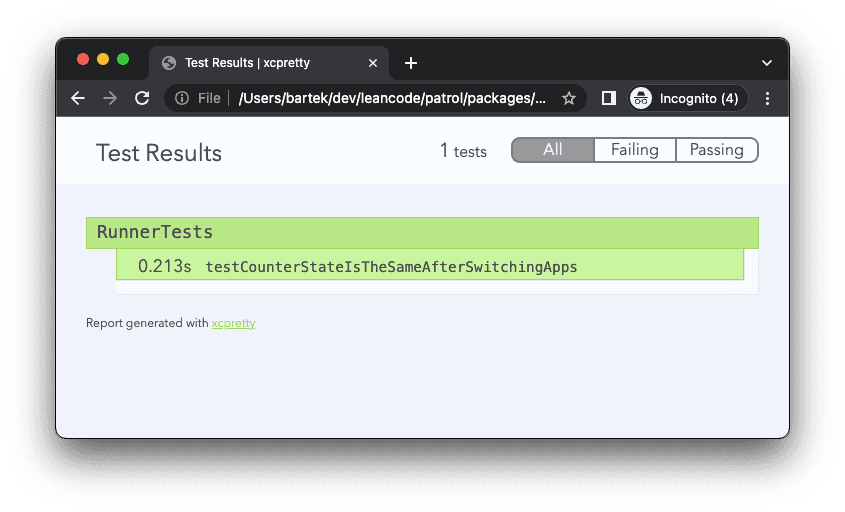
This is so awesome!